Monday, January 5, 2015

Cheap VR-Google Cardboard


It seems that everything these days needs to be in 3D. It doesn't even matter whether the movie/video/game is really designed for 3D, it needs to be in 3D. If you are anything like me, you may want to have a chance to check out some 3D, but don't really want to pay all that much for it.
Introducing Google Cardboard.
Google Cardboard was created in a 20% free time which Google gives to it's employees so that they can create things which they are passionate about. Read more about this here. 

Google cardboard only requires a quick trip to the hardware store (unless your lazy like me and ordered a kit from Amazon.)  and is fairly easy to build. If you want to build your own download the directions here.  Once together you have several choices of apps to use. I believe there are even a few on the Apple market, but there are several on the Google Play store. The main one just called, Cardboard is several features to play around with as you are figuring things out.

Once all of this is together and you have the apps loaded and ready get ready. I won't tell you that it is the best 3D that you have ever experienced, it's not. But hey, you didn't even spend $10, so all in all, good times (plus there are a few fun games to play.)

Monday, December 29, 2014

Moodle beginnings


Over the past year I have become very busy with multiple things including a new call (this is where I am, "called" to be a pastor at a new church), a new state and moving and so on. In the midst of all of this I have been working off and on with something called Moodle. (moodle.com) 

If you have been following any of my post you know that I have been working hard on digitizing aspects of my class. I have been doing this to utilize the internet as a tool to help improve my classroom when I can. Moodle by itself is a full blown e-learning platform that can be freely used and installed. Unlike some sites and tools, this is a full package which means you need the server space and tools to set it up including a little know how in the website category. Depending on which server company you use this can be done fairly simple. I use Bluehost (Bluehost.com), which has treated me well thus far, and has a one click install that made it fairly easy to set up originally.

My overall impression has been very positive. While I have not figured it all out yet, I do have a decently operational site that uses it thus far and I am working on how to further integrate Google into it.

The challenge with this software is that while much of it flows rather easily, not all of it does. There are certain aspects that require a bit of work to better understand. Some of the challenges are on the side of me, the administrator, but there are still a few that fall on the side of the user, those are the ones I mainly want to fix.

As I try to pick back up on a few things that I have let fall by the wayside, I plan to write a few post on some of the things that I am doing. I will try to also, eventually write an install and set up piece for Moodle. In the meantime take a look at my work: www.myconfirmation.org

Friday, February 28, 2014

Uses of Google Calendar-Part 1: Time Sheets

Admittedly, it has been a long time sense I last posted. Part of this is that I have been busy with a few things. Another part is that I have been focused on updating websites and what not and I did not want to post about writing HTML or CSS so instead I waited. However, one of the things that I have wanted to talk about but have never gotten to is Google Calendars. Google calendars have several functions including your basic calendar settings to keeping track of tasks that need to be done. One of the most basic uses of Google calendar I use is to keep track of my time in which I work.

 I use Google Calendar to write down everything I do, and then I use another site (www.gtimereport.com) to compile my lists and keep a spreadsheet/spreadsheets of my weekly times spent. My reasons are mainly for my own reflection. Having a salaried job means that I make my own hours and at times people have abused this privilege and other times people have found themselves working to much at the sacrifice of the family. I want to make sure that I do neither, so I track my hours to make sure I keep myself in line.

If you go to Google Calendar and choose the view you want (you can change the view in the top right corner of the calendar.) Double click on the day that you want to add an event, click the edit link below. From here you need to do a few things. I like to note what the activity is that I am doing. You will also need to unclick (if it is checked) the "all day" setting for the event. Now you can adjust exactly how much time you spent for the activity. Do this for all your daily events or activities. Now, with this you can be as specific or ambiguous as you want to be, you could just write, "working" for an event and have it go 8 hours. I personally am a little more specific, this helps later when I fill out various reports for meetings.

Once you are done (or once a week in my case) I go to the site Gtime reports. Right now this site is busy updating itself due to some changes that Google made. I mention some of those changes here, in another blog talking about Thunderbird. However, you can still log into your Google account through the site, choose the calendar that has your timed events on it (make sure there are no other events on this calendar, it is tracking time and will add them to your overall time.) Once you have done this on the right hand side you can choose your start and end day and click create "Create Report" you will notice that it has a few options. Lately, the create report in Google Drive has not been working due to the updates, however you can still create the report in a new window or an Excell sheet. Anyway, there you have it. Enjoy.

Monday, December 30, 2013

Because who doesn't need another monitor?


Not everyone is amazed when they come into my office, but there are those who look at the three monitors and are impressed, especially since one is my laptop, and the other two stream off of it. Most of us know how to hook up one extra monitor but what about two?

My solution to this problem fell upon me when a graphics card broke. The card itself didn't break, just the hookup that I was using to connect the monitor. As I limped by in those days I was forced to find another way (if only temporarily) to have a monitor.

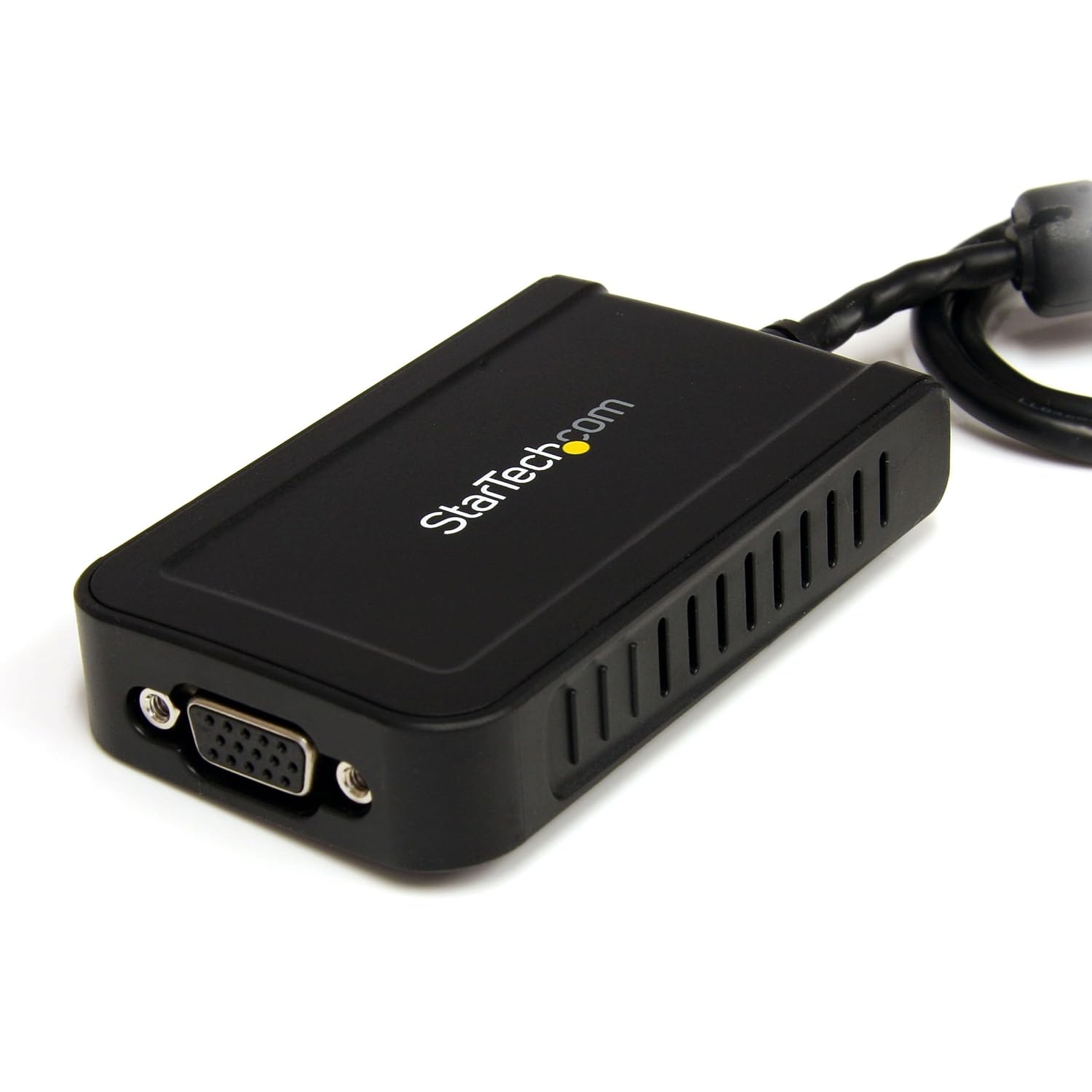
I fixed my issue with a USB to VGA adapter. The beauty of this fix was once I got a new laptop I was able to use it to install my second extra monitor.

I don't suggest this as a permanent option for those of you that truly utilize multiple monitors, but for those that are thinking about it, or only need one on occasion I think it is a good midpoint to start. If you require (or be honest, you just want more don't you) multiple monitors, you will eventually need to set up your machine to run them. While most laptops can handle one extra monitor, you would probably need a desktop to handle more.

There are some draw back however to gaining an extra monitor the way I did:

1. It is running through a software which means it will never be as good as one straight from you graphics card.

2. It takes extra processing power, this means that if you are running a dated machine it will slow you down even more.

3. The refresh rate among other things is slower which will make it hard for you to do anything on this monitor that requires it, such as watching videos or playing games. (note: These will still work on your other monitors, simply not this one.)

Wednesday, November 27, 2013

Chrome Remote Desktop: A Reveiw

I have used Teamviewer quite a bit and truly like it for many reasons. I have mentioned this before here. However, recently, when at home on my home computer I have been using something called Chrome Remote Desktop. This is a newish Chrome app, that is, it is an app that works in the Chrome web browser. You can find the app at the Chrome Web Store here. I have to say that so far I have been pleasantly surprised, however, there are something I wish they would do better.

Pros:


  • .
  • It is a free application that goes right into the web browser.
  • It is quite simple, there is no other program that you have to worry about on your machine or anything that you have to make sure is, "on" before you go, you just click on your browser apps punch in the code and go. 
  • It seems to be just as fast as Teamviewer and Logmein.
  • There is nothing that I have read so far that tells me not to use this for business purposes which you cannot do with either Logmein or Teamviewer without paying for it. (At least you are not supposed to, and being an honest man, I don't.)
Cons: 
  • The biggest con for this app is that it doesn't work in phones or tablets. To say this another way, this app doesn't come in app form. For me this is huge, I want to use something like this for when I travel. At the present I can't do remote work using a tablet or phone without paying for it. If this came out in an app form it would be a big deal for me. 
  • It does not show multiple monitors well. I have three monitors at work, Remote desktop tries to show me all of these monitors at once when logged in at home, but I only have one monitor at home, so it shrinks the size to make it fit. Teamviewer does this well, it displays one monitor at a time and then puts a button on the bottom to move from one monitor to the next. At present, I have to shut down two monitors and just use a 1:1 monitor ratio when working from home. 
  • It (to my knowledge) is only available on Chrome. For me this is not a huge con, but it might be to someone else. With Teamviewer and Logmein, if you are on an unfamiliar computer and want to help somebody per say, it is a matter of logging on the website and signing in. With Chrome, you have to have a Chrome Web browser and the app installed on both computers. 

These are my thoughts, feel free to comment below your own opinions. 

Sunday, November 17, 2013

Timed Text Messages

Ok, all the way back to my first post ever I talked about how to create a mass texting list using Google Voice and your email you can find that here. This work well if you need to send a text out to a lot of people. However, what if you know you need to send a text, but you also know that you will be busy when you need to send it. (This also works well if you know that you are forgetful and will probably forget to send out the text.) The answer that I have found is to use something called, "GmailDelaySend." This is an App Script API. You can find it here. On the page you can also find instructions on how to install it and use it.

With this script installed and my set up with mass texting, I can now delay when the text message goes out. This makes it easier for me to send out the text messages when they need to be sent out instead of when I can get around to it.

By the way, this also works if you are sending out a weekly newsletter or something else that needs to be e-mailed out in a timed fashion. Have fun, post questions below I will answer if I can.


Thursday, November 14, 2013

E-Mail Clients (Thunderbird) and Google Calendar

Every so often in a blog like this I need to get specific. This is necessary because we do live in a very specific world and when one problem erupts it needs to be dealt with. Recently I had one of those issues with my e-mail client, Thunderbird. Thunderbird is an e-mail client (think, outlook, it downloads your e-mails for you and helps you to organize them.) However, I used Thunderbird for so much more. I use it to organize my calendars and my tasks among other things. Needless to say a few weeks ago Google announced that they were no longer going to support something called Caldav (Caldav is a system of calendar control used at times by various programs, such as Thunderbird)

Needless to say, this was a huge problem for me, this is how my work gets done, I keep my schedule and timing by using the calendar. It is true, I can simply go online and get it there, but compared to Thunderbird (in my opinion) this is less effective.

After a huge uproar from the Google community of users they decided to reinstate the use of Caldav, but created a different link system for its use and basically messed my entire system up. I tried and tried to figure it out, but continually ran into issues mainly coming from the Google end of the project.

To get around my issue I switched gears and began using another online calendar mechanism with my Thunderbird, it is called, ICal. This system is also very common and used my most calendar softwares. If you have a client other than Thunderbird and would like to set up a calendar system, feel free to ask below and I will try to create a post for you, or at least answer your question (I have experience with several client, I just prefer Thunderbird.)

Prepare Thunderbird by:

1. Download and install Thunderbird You can click here for the latest release.

2. Go to Tools and in the drop down click on "Add-Ons"

3. Search out an add-on called, "Lightning" it is for calendars. Click here to go to the webpage.
        i. follow directions to install

4. Search add-ons again for one called, "Provider for Google Calendar" Click here to go to the webpage.
       i. follow directions to install

5. Restart Thunderbird to complete install

Now to Install the Calendars in Thunderbird: 

1. Open both a webpage and Thunderbird.

2. On the webpage navigate to Google Calendars.

3. Select the calendar you want to have in Thunderbird, there should be an arrow on the right hand side click it.

4. From the drop down select, "Calendar Settings"

5. In calendar settings, toward the bottom should be a section titled, "calendar address" and three buttons one for XML, one for ICal, and one for HTML. Click on the one for ICal.

6. Once clicked a pop up should appear with an address and a warning not to give this address out. Save the address.

7. In Thunderbird, click File-> New-> Calendar. A box should appear.

8. In the box select "Network"

9. In the details you should have the option to include a Google Calendar (This is the, "Provider" add on, so if it is not there, then it is not installed correctly.)

10. In the box for Location, put the ICal link you saved.

11. Complete the rest of the process according to your liking. Once complete it will ask you to sign into your Google Account. (or the Google Account for the location of the calendar, if you are running several calendars share them all with your Google account for simplicity, this is what I do, so it is always my account.)

12. When you are done, it should all be there, and you should be able to add and modify events.

And there you have it, very specific instructions for a problem I had, and how I got around it.